

Project Management Jira: Streamlining Workflows for Teams
Jira is a powerful tool for project management that helps teams organize, track, and manage their work. It offers a wide range of features to suit different project styles and team sizes. Jira’s flexibility allows it to adapt to both traditional and Agile project management approaches, making it a versatile choice for many organizations.
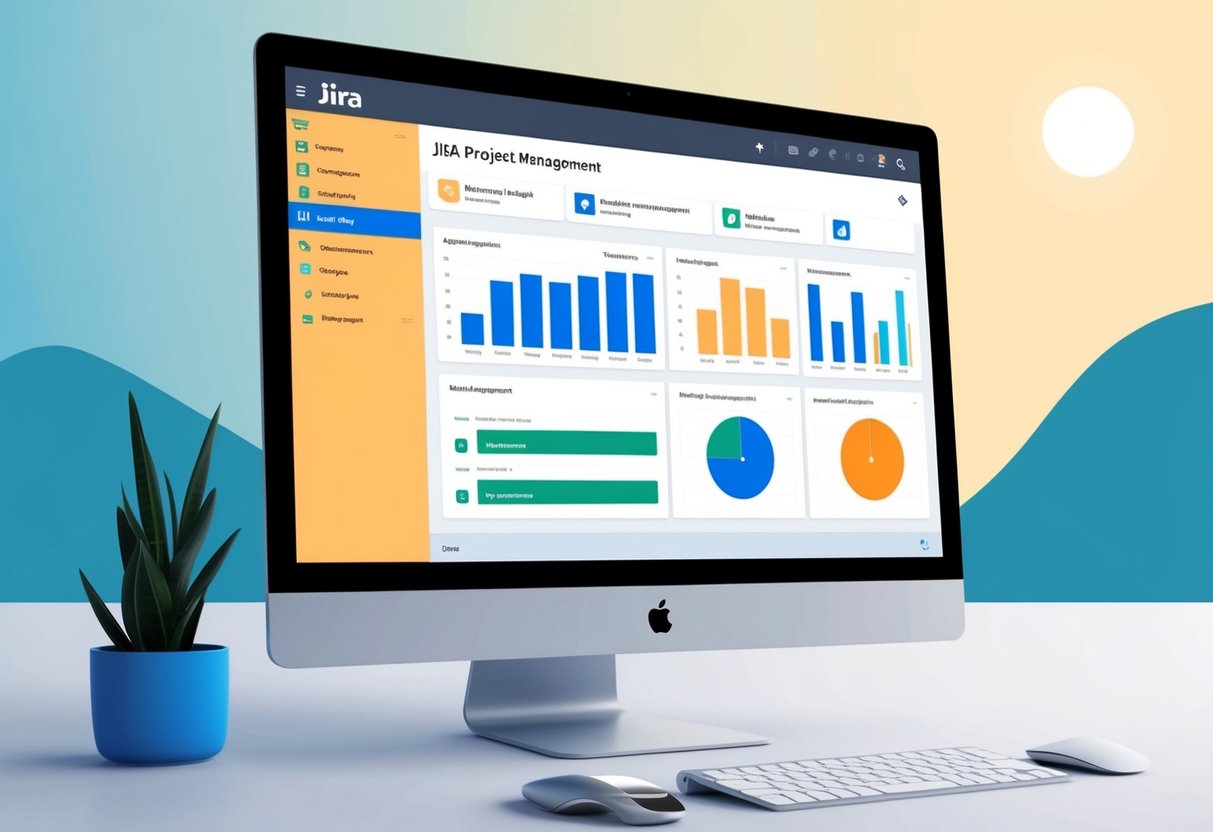
With Jira, teams can create and assign tasks, set priorities, and track progress through customizable workflows. The software provides real-time updates and visual reports, giving project managers and team members a clear view of project status and potential bottlenecks.
Jira’s issue tracking system is particularly useful for software development teams, but it can be adapted for various industries and project types. Its integration capabilities allow it to work seamlessly with other popular tools, enhancing team collaboration and productivity.
Key Takeaways
- Jira offers customizable features for various project management styles
- Teams can track tasks, set priorities, and visualize workflows in Jira
- Jira integrates with other tools to improve collaboration and productivity
Fundamentals of Jira for Project Management
Jira provides a robust set of tools for managing projects and tracking tasks. Its flexible interface and core features support various project management approaches.
Understanding the Jira Interface
Jira’s interface is built around projects and issues. Projects group related work, while issues represent individual tasks or items. Users can create custom project types to fit their needs. The main dashboard shows key information at a glance.
Jira offers different views for tracking work:
- List view: Shows issues in a spreadsheet-like format
- Board view: Displays tasks on Kanban or Scrum boards
- Timeline view: Presents work on a Gantt-style chart
Teams can customize these views to match their workflow. Filters help users find specific issues quickly.
Core Features of Jira
Jira’s key features make it a powerful tool for project management:
- Issue tracking: Create, assign, and update tasks easily
- Workflows: Define steps for moving work from start to finish
- Reporting: Generate charts and reports on project progress
- Integrations: Connect with other tools like Confluence or Bitbucket
Jira supports Agile methods with features for Scrum and Kanban. It offers sprint planning tools and burndown charts for tracking progress.
For software teams, Jira links issues to code commits and pull requests. This helps track development work closely.
Setting Up Projects in Jira
Jira makes it easy to set up and manage projects. Users can create new projects quickly and set permissions to control access.
Creating Your First Project
To create a project in Jira, click the “Create project” button on the dashboard. Pick a project template that fits your needs. Templates include options for software development, business projects, and more.
Give your project a name and key. The key is a short code used to identify the project. Next, choose a project lead. This person will manage the project.
Set up your project board. Drag and drop columns to match your workflow. Add issues like tasks and bugs to start tracking work. You can also import issues from a spreadsheet if you have existing data.
Configuring Project Permissions
Project permissions control who can view and edit your Jira project. To set permissions, go to Project Settings and click on Permissions.
Jira offers preset permission schemes for common setups. You can also create a custom scheme. Assign roles like Administrators, Developers, and Users.
Set rules for each role. For example, you might let Developers create and edit issues, but only allow Administrators to delete them. You can also restrict access to certain issue types or workflow steps.
Review permissions carefully. Make sure team members can do their jobs without giving too much access.
Workflow Management in Jira

Jira offers powerful tools for managing project workflows. Users can customize processes and automate tasks to match their team’s needs.
Customizing Workflows
Jira lets teams create unique workflows. These define how tasks move from start to finish. Users can add custom statuses like “In Review” or “Testing.” They can also set up transitions between these statuses.
Teams can make simple or complex workflows. A basic workflow might have just three steps: To Do, In Progress, and Done. More detailed ones can include many stages and branches.
Jira’s drag-and-drop editor makes it easy to design workflows. Users can add conditions to transitions. For example, only certain team members may be allowed to move a task to “Complete.”
Advanced Workflow Features
Jira’s advanced features boost workflow efficiency. Automations can update task fields or notify team members when statuses change. This saves time and reduces manual work.
Teams can set up parallel workflows for different task types. A bug might follow a different path than a new feature request.
Jira also allows for global transitions. These let tasks move to certain statuses from any point in the workflow. This flexibility helps teams handle unexpected issues quickly.
Reporting tools show how tasks move through workflows. Managers can spot bottlenecks and improve processes. They can see which stages take the most time and adjust accordingly.
Issue and Task Tracking

Jira offers powerful tools for tracking issues and tasks throughout a project’s lifecycle. Teams can easily create, assign, and monitor work items to keep projects on track.
Managing Issues and Tasks
Jira allows users to create issues for different types of work. These can include bugs, features, or general tasks. Each issue has fields like priority, status, and assignee. Users can set due dates and add descriptions to provide context.
Teams can organize issues into sprints or backlog lists. This helps prioritize work and plan upcoming tasks. As work progresses, team members can update issue statuses. This gives everyone visibility into what’s in progress and what’s done.
Jira’s board views make it easy to visualize workflow. Kanban boards show issues moving through stages. Scrum boards help teams manage sprints and track velocity.
Linking Issues and Subtasks
Complex work often requires breaking tasks into smaller pieces. Jira lets users create subtasks within larger issues. This helps teams manage dependencies and track progress on multi-step work.
Users can also link related issues together. This creates connections between work items across projects or teams. Common link types include “blocks,” “is blocked by,” and “relates to.”
Linked issues help show the big picture of how work fits together. Team members can quickly see how their tasks impact other parts of the project. This improves coordination and helps prevent bottlenecks.
Utilizing Custom Filters and Labels
Jira’s search and filter tools help users find relevant issues quickly. Teams can create saved filters for common views like “My open issues” or “High priority bugs.”
Labels provide a flexible way to tag and categorize issues. Users can add multiple labels to each issue. This makes it easy to group related work across projects or teams.
Custom filters can combine multiple search criteria. This lets teams create complex queries to surface important information. Filters can include fields like status, priority, label, and more.
JQL (Jira Query Language) offers advanced search options for power users. This SQL-like syntax enables precise issue filtering. Teams can save and share JQL queries to standardize reporting.
Agile Project Management with Jira

Jira helps teams manage agile projects through flexible boards, sprint planning tools, and detailed reports. These features let teams track work, plan sprints, and measure progress.
Scrum and Kanban Boards
Jira offers both Scrum and Kanban boards. Scrum boards show work planned for a sprint. They have columns like “To Do,” “In Progress,” and “Done.” Teams move tasks across columns as they work.
Kanban boards focus on workflow. They limit work in progress. This helps teams finish tasks before starting new ones. Kanban boards often have more columns than Scrum boards.
Both board types let teams drag and drop issues. This makes updating status quick and easy. Teams can also add swimlanes to group related work.
Managing Sprints and Backlogs
Jira’s sprint planning tools help teams organize work. The backlog holds all project tasks. Teams drag items from the backlog into sprints.
Sprint planning meetings use Jira to estimate work. Teams can add story points or time estimates to issues. This helps balance workloads.
During sprints, Jira tracks progress. It shows which tasks are done and which need attention. Teams can easily add or remove sprint items as needed.
Agile Reporting and Metrics
Jira creates many agile reports automatically. These help teams track progress and spot problems.
The burndown chart shows work left in a sprint. It helps predict if teams will finish on time. The velocity chart tracks how much work teams complete each sprint. This aids in future planning.
The cumulative flow diagram shows task status over time. It can reveal bottlenecks in the workflow. Other reports track issues, epics, and versions.
Jira’s dashboards let teams customize views of these metrics. This gives quick insight into project health and team performance.
Optimizing Team Collaboration

Jira helps teams work together better by making it easy to assign tasks and communicate. It lets different groups like marketing and software teams share info and track progress.
Assigning and Prioritizing Work
In Jira, team leaders can assign tasks to members based on their skills and workload. The software allows setting priorities for each task, helping teams focus on what’s most important. Users can label tasks as high, medium, or low priority.
Teams can create user stories to break big projects into smaller, manageable pieces. This makes it easier to track progress and understand what needs to be done. Jira’s boards show all tasks in one place, so everyone knows what they should be working on.
Project managers can use Jira to balance workloads across the team. This stops some people from getting too much work while others don’t have enough.
Using Jira in Cross-Functional Teams
Jira helps different teams work together on projects. Marketing teams can see what software teams are doing, and vice versa. This stops work from being done twice and helps everyone stay on the same page.
The software has special views for each team. Software teams might use a sprint board, while marketing teams could prefer a calendar view. But all these views show the same project data, just in different ways.
Jira lets teams share files and leave comments on tasks. This keeps all project info in one place. It cuts down on long email chains and lost messages.
Teams can also use Jira to plan meetings and track decisions. This helps everyone remember what was agreed and why.
Reporting and Insights

Jira’s reporting tools give teams valuable data to track progress and make smart choices. Custom dashboards and insightful reports help managers spot trends and boost productivity.
Creating Custom Dashboards
Custom dashboards in Jira let teams see key info at a glance. Users can add charts, graphs, and filters to display project data. Popular dashboard items include sprint burndown charts and issue statistics.
Teams can set up dashboards for different needs. A product owner might track backlog health, while a scrum master focuses on sprint progress. Dashboards update in real-time, so everyone sees the latest data.
Jira offers pre-made gadgets to quickly build useful dashboards. Users can also create custom JQL queries for more specific metrics. Sharing dashboards helps keep the whole team in sync.
Gleaning Insights from Reports
Jira reports turn raw data into actionable insights. The system offers many built-in report types. These include velocity charts, cumulative flow diagrams, and version reports.
Teams use these reports to spot bottlenecks and improve their processes. For example, a control chart can show if issues are taking longer than usual to resolve. Version reports help track progress towards releases.
Managers can use Jira’s reporting tools to make data-driven decisions. Reports show if the team is meeting its goals or falling behind. This info helps leaders adjust workloads and priorities as needed.
Integrations and Extensions
Jira’s power grows through add-ons and integrations. These tools boost project management and link Jira to other apps. They save time and make teams more efficient.
Extending Jira with Add-Ons and Integrations
Jira offers many add-ons to improve its features. These add-ons help with time tracking, reporting, and team collaboration. For example, TMetric and Everhour are popular for tracking time spent on tasks.
Integrations connect Jira to other tools. This creates a smooth workflow across different platforms. Power BI links with Jira for better data analysis. Salesforce integration helps sales teams manage customer info alongside projects.
Jira Cloud makes it easy to use these add-ons. Users can find and install them quickly from the Atlassian Marketplace.
Streamlining Processes with Additions
Automations in Jira cut down on manual work. They handle routine tasks without human input. This frees up time for more important work.
The Release Hub helps teams plan and track software releases. It shows all the tasks needed for a successful launch in one place.
Roadmaps give a big-picture view of project timelines. Teams can see how their work fits into larger goals.
These additions make project management smoother. They reduce errors and help teams stay on track.
Jira in the Software Development Lifecycle
Jira fits well into the software development process. It supports Agile methods like Scrum and Kanban.
Teams use Jira boards to track progress. They can see which tasks are done and which need attention.
Jira links with code tools like GitHub. This makes it easy to connect code changes to project tasks.
The platform also helps with sprint planning and backlog management. Teams can adjust their work based on changing needs.
By using Jira throughout development, teams keep all project info in one place. This helps everyone stay up to date and work together better.
Conclusion
Jira is a top choice for project management. It offers useful features for teams of all sizes. The software helps track tasks, manage workflows, and collaborate effectively.
Customization options let teams tailor Jira to their needs. This flexibility makes it suitable for various industries and project types.
Jira shines in Agile environments. Its boards and sprints support iterative development approaches. Teams can easily plan, track, and adjust their work.
The reporting tools give managers valuable insights. They can spot bottlenecks and make data-driven decisions to improve processes.
Integration capabilities extend Jira’s usefulness. It connects with many other tools, creating a seamless workflow.
While Jira has a learning curve, its benefits often outweigh this challenge. With proper setup and training, teams can boost their productivity and project success rates.
As project management evolves, Jira continues to adapt. Regular updates ensure it remains relevant and effective for modern teams.

 TechPowered
Leave a comment