

Introduction
Mac users seeking efficient project management tools have plenty of options in 2025. These software solutions help teams organize tasks, track progress, and collaborate seamlessly.
Many offer features tailored to the Mac ecosystem, making them a great fit for Apple enthusiasts.
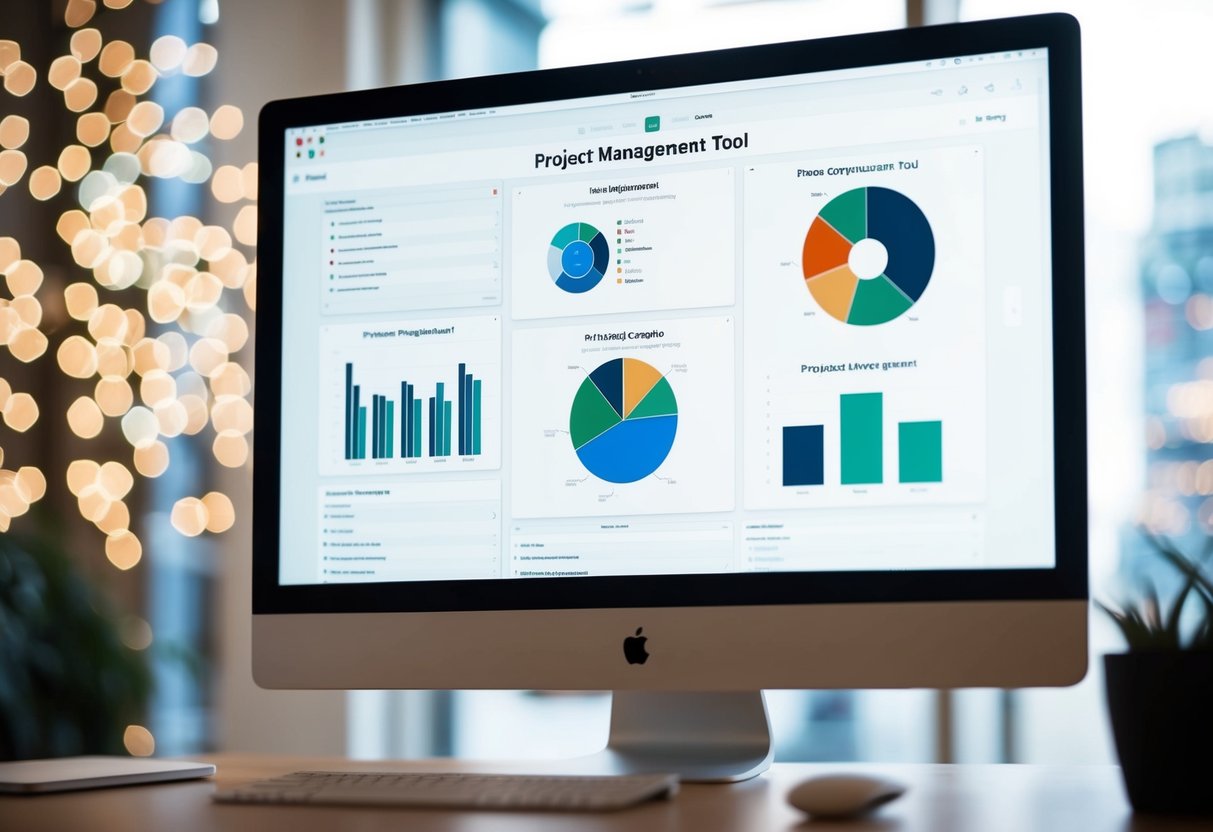
ProjectManager stands out as a versatile choice for Mac-based project management. It provides Gantt charts, kanban boards, and calendars to visualize project timelines and workflows.
The software also includes dashboards for quick overviews and task automation to streamline processes.
Other top contenders like monday.com and Asana offer robust Mac apps with user-friendly interfaces.
These tools support various project styles and team sizes, from small businesses to large enterprises.
When choosing project management software for Mac, users should consider factors like pricing, features, and integration options.
Key Takeaways
- Mac-compatible project management tools offer diverse features for different team needs
- Popular options include ProjectManager, monday.com, and Asana with native Mac apps
- Key factors in choosing software are pricing, features, and integration capabilities
Understanding Project Management Software for Mac
Project management tools for Mac help teams organize tasks and collaborate effectively.
These solutions offer features tailored for Apple users while providing seamless integration across devices.
Defining Project Management Tools
Project management software helps teams plan, track, and execute projects. These tools offer task management, team collaboration, and progress tracking features. Many include Gantt charts, kanban boards, and time tracking.
For Mac users, project management software comes in two main forms: web-based and native applications. Web-based tools work through browsers, while native apps install directly on macOS devices.
Some popular project management tools for Mac include Asana, Trello, and OmniFocus. These solutions cater to different team sizes and project complexities.
Software Needs for Mac Users

Mac users need project management tools that work smoothly with macOS and iOS. Key features include:
- Native macOS and iOS apps
- iCloud sync
- Apple ID integration
- Touch Bar support (for compatible Macs)
- Optimized performance on Apple Silicon
Many tools offer a consistent experience across Mac, iPhone, and iPad. This allows users to manage projects from any Apple device.
Some Mac-specific project management apps leverage built-in macOS features like Notifications and Spotlight search. This deep integration enhances productivity for Apple users.
Desktop Apps vs Mobile Apps
Desktop apps for Mac offer full-featured project management experiences. They typically provide:
- Robust planning tools
- Detailed reporting
- Resource management
- Advanced customization options
Mobile apps for iOS focus on on-the-go project updates. Key features include:
- Task creation and editing
- Progress tracking
- Team messaging
- File sharing
Many project management solutions offer both desktop and mobile apps. This allows Mac users to seamlessly switch between devices while managing projects.
Some tools use cloud syncing to keep data updated across all devices. This ensures Mac users have access to the latest project information, whether working from a MacBook or an iPhone.
Assessing Top Project Management Apps for Mac

Mac users have several great options for project management software. These tools offer features like task tracking, team collaboration, and workflow automation to boost productivity.
monday.com Work Management
monday.com is a top choice for Mac-based project management. It has a clean interface that fits well with macOS design. The platform uses colorful boards to organize tasks and projects.
Key features include:
- Custom workflows
- Time tracking
- File sharing
- Team communication tools
monday.com works for small teams and large companies. It lets users create templates for common projects. This saves time when starting new tasks.
The app syncs across devices, so team members can access projects on Macs, iPhones, and iPads.
Asana for Workflow Automation
Asana stands out for its strong automation features. It helps Mac users streamline repetitive tasks.
Asana’s automation tools can:
- Assign tasks automatically
- Send reminders
- Update project status
- Move items between project stages
The software has a clean look that Mac users will find familiar. It offers list, board, and calendar views for tasks.
Asana integrates with many other apps. This makes it easy to connect with tools like Slack or Google Drive.
Trello’s Kanban Boards
Trello brings kanban-style project management to Mac users. Its simple boards are perfect for visual thinkers.
Trello boards consist of:
- Lists (columns)
- Cards (tasks)
- Labels
- Due dates
Users can drag and drop cards between lists as tasks progress. This gives a clear picture of project status at a glance.
Trello works well for personal use and team projects. Its Mac app offers a native experience with support for shortcuts and notifications.
ClickUp’s Customization Capabilities
ClickUp offers deep customization for Mac project management. Users can tailor the app to fit their exact needs.
Customization options include:
- Custom fields
- Multiple view types (list, board, calendar, Gantt)
- Task statuses
- Workflows
ClickUp’s flexibility makes it suitable for various team sizes and project types. The Mac app provides a smooth, native experience.
The software includes built-in time tracking and reporting tools. These features help teams measure productivity and project progress.
Core Features and Functionalities

Project management tools for Mac offer key features to help teams plan, track, and complete projects efficiently. These tools combine task management, visual planning, team collaboration, and integrations to boost productivity.
Task and Resource Management
Mac project management software excels at organizing tasks and resources. Users can create, assign, and prioritize tasks easily. Many tools let teams break down large projects into smaller, manageable tasks.
Resource management features help allocate team members and track their workloads. This prevents overwork and ensures projects stay on schedule.
Some tools offer time tracking to measure how long tasks take. This data helps with future planning and billing.
Task dependencies allow users to link related items. When one task is complete, the next one automatically becomes active.
Gantt Charts and Timelines
Gantt charts give a visual overview of project schedules. They show tasks, durations, and dependencies on a timeline.
Mac project tools often have drag-and-drop interfaces for easy timeline adjustments. Users can quickly see how changes affect the overall schedule.
Milestones mark important dates or goals within a project. They help teams track progress and stay motivated.
Some software offers critical path analysis. This highlights tasks that directly impact the project end date.
Collaboration and Communication Tools
Team collaboration is crucial for project success. Mac project tools often include built-in messaging and file sharing.
Comment threads on tasks help teams discuss details without endless email chains. Some tools offer video calls for face-to-face meetings.
Shared calendars keep everyone aware of deadlines and important dates. Task boards give a quick visual of what everyone is working on.
File attachments let teams share documents, images, and other project materials in one place. Version control tracks changes to avoid confusion.
Integration Options
Mac project tools often integrate with other software to create a seamless workflow. Common integrations include:
- Cloud storage (Dropbox, Google Drive)
- Communication tools (Slack, Microsoft Teams)
- Time tracking apps
- Accounting software
Many tools offer APIs for custom integrations. This lets teams connect their project software with specialized tools they already use.
Some Mac project tools sync with Apple’s built-in apps like Calendar and Reminders. This helps users manage tasks across devices.
Interface and Usability
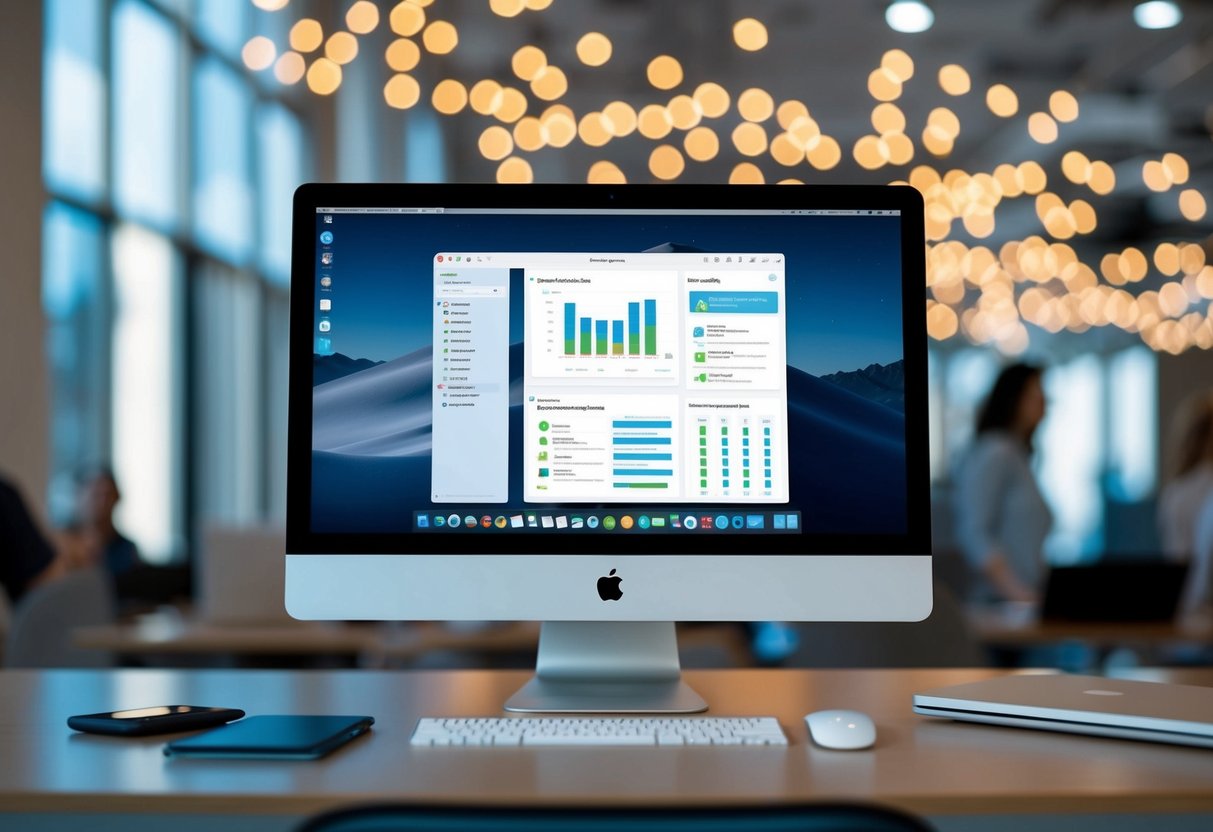
Mac project management tools offer sleek interfaces and user-friendly designs. They focus on smooth navigation and customizable layouts to boost productivity.
Evaluating User Interface Design
Mac project management tools have clean, modern interfaces. They use icons, color-coding, and drop-down menus for easy access to features. Many tools mimic the Mac OS style for a familiar feel. Buttons and menus are clearly labeled and logically grouped.
Tools like Wrike and ClickUp offer dark mode options to reduce eye strain. Drag-and-drop functions let users move tasks and update project status quickly. Some apps use tabs or side panels to organize different project areas.
Customizable Dashboards and Views
Users can tailor their workspace in many Mac project tools. They can add, remove, or rearrange widgets on dashboards. This lets teams focus on their most important data.
Popular views include Gantt charts, kanban boards, and calendars. Users can switch between these with a click. Some tools let users create custom views for specific needs.
Filters help narrow down task lists or project overviews. Color-coding options make it easy to spot priorities or deadlines at a glance.
Ease of Use and Learning Curve
Mac project tools aim for quick adoption. They often have built-in tutorials or tooltips to guide new users. Many offer templates for common project types to help teams get started fast.
Most tools have a search function to find tasks or files quickly. Keyboard shortcuts speed up common actions for power users. Some apps sync with popular Mac software like Calendar or Mail for smoother workflow integration.
While feature-rich tools may take longer to master, they often offer tiered interfaces. This lets new users start with basics and add complexity as they learn.
Project Management Software Pricing Comparison
Project management tools for Mac come with various pricing models. Users can choose between free and paid options, compare subscription plans, and evaluate the value they get for their money.
Free vs Paid Tiers
Many project management apps offer free plans with basic features. These often limit the number of users or projects. Paid tiers unlock more tools and remove restrictions.
Free versions typically include task lists, basic scheduling, and team chat. They’re good for small teams or personal use. Paid tiers add features like time tracking, advanced reporting, and integrations.
Some popular tools offer free trials of their paid plans. This lets users test full features before buying. Trial periods usually last 14 to 30 days.
Comparing Subscription Plans
Subscription plans vary widely among project management software. Prices often depend on the number of users and features included.
Here’s a quick comparison of monthly costs per user for some top tools:
- Basic plans: $5 – $15
- Mid-range plans: $15 – $30
- Advanced plans: $30 – $50+
Most apps bill monthly or annually. Yearly payments often come with a discount. Some offer custom enterprise pricing for large teams.
Analyzing Value for Money
When picking a project management tool, consider what features you need most. Some apps focus on visual planning, while others excel at task management or team collaboration.
Look at how each tool might boost your team’s productivity. A higher-priced option could save money if it significantly improves efficiency.
Key factors to weigh:
- Number of projects and users
- Required features (e.g., Gantt charts, time tracking)
- Integration with other software
- Customer support quality
- User-friendliness
Remember, the cheapest option isn’t always the best value. Choose a tool that fits your workflow and budget.
Integration and Expansion Capabilities
Project management tools for Mac offer ways to connect with other apps and expand their features. This helps teams work better and customize their tools.
Project Software Integrations
Many Mac project tools link up with popular apps. This lets teams use their favorite software together. For example, some tools connect with email, file storage, and chat apps.
Teams can sync tasks from their project tool to their calendars. This keeps everyone on the same page. Some tools also work with time tracking apps. This makes it easy to log hours on tasks.
File sharing is often built-in. Users can attach files from cloud storage right to their tasks. This keeps all project info in one place.
Automating Workflows
Automation saves time on routine tasks. Many Mac project tools have ways to set up automatic actions.
For example, a tool might auto-assign tasks based on certain rules. Or it could send alerts when deadlines are near. Some tools let users create custom triggers for actions.
These automations can be simple or complex. A basic one might move a task to “Done” when marked complete. A more advanced setup could update multiple projects at once.
Teams can create automation recipes to fit their needs. This cuts down on manual work and reduces errors.
Expanding with Add-Ons and Plugins
Add-ons and plugins boost what project tools can do. They’re like extra pieces that snap onto the main tool.
Many Mac project tools have their own app stores. Users can browse and install add-ons easily. Some common add-ons include:
- Advanced reporting tools
- Time tracking features
- Custom field creators
- Gantt chart makers
Plugins often add new views or ways to organize work. For instance, a plugin might add a mind-mapping feature to a list-based tool.
Some add-ons connect to industry-specific software. This helps teams tailor their project tool to their exact needs.
Support and Resources
Project management tools for Mac offer various support options and learning resources. Users can access help when needed and improve their skills with the software.
Customer Support Services
Many Mac project management tools provide customer support through multiple channels.
Email and phone support are common for quick issue resolution. Some offer live chat for real-time assistance.
Premium support packages may be available for faster response times and dedicated help.
Support hours vary, with some companies providing 24/7 service. Users should check support options before choosing a tool to ensure their needs are met.
Online Communities and Knowledge Bases
Project management solutions often have online forums where users can ask questions and share tips. These communities are great for peer-to-peer help and learning best practices.
Knowledge bases contain articles, FAQs, and troubleshooting guides. They cover common issues and how to use features.
Some tools have video libraries explaining key functions. These resources let users find answers quickly without contacting support.
Training and Tutorials
Many Mac project management tools offer training resources to help users learn the software. Video tutorials cover basic and advanced features.
Some provide step-by-step guides for common tasks. Webinars may be available for live learning sessions.
Self-paced courses can help users master the tool at their own speed. Some companies offer certification programs for power users.
These training options help teams get the most out of their project management software.
Advanced Project Management Features for Mac
Mac users can access powerful tools for managing complex projects. These features enhance teamwork, provide visual insights, and offer detailed reporting capabilities.
Real-Time Collaboration and Updates
Many Mac project management tools now offer real-time collaboration. Team members can work together on tasks, documents, and plans simultaneously. Changes appear instantly for all users.
This live updating helps keep everyone in sync. It reduces miscommunication and speeds up work. Some apps also include chat features for quick discussions.
Real-time features work well on Mac’s smooth interface. They make remote work feel more connected and productive.
Complex Project Visualization
Mac project management software often includes advanced visualization tools. These help teams understand complex projects at a glance.
Gantt charts show task timelines and dependencies. Kanban boards display work stages visually. Network diagrams map out project relationships.
These visuals are easy to create and update on Mac. They help spot bottlenecks and plan resources better. Teams can adjust plans quickly as projects change.
Reporting Dashboards and Data Visualization
Mac project tools offer powerful reporting features. Dashboards show key metrics and progress in real-time.
Users can create custom reports with charts and graphs. These visuals make it easy to spot trends and issues.
Data from different parts of a project can be combined. This gives a full picture of project health. Reports can be shared or exported for presentations.
Mac’s crisp displays make these visuals pop. This helps managers make informed decisions quickly.
Conclusion
Mac users have many great options for project management software in 2025. Top choices like Wrike, Trello, and ClickUp offer robust features tailored for macOS and iOS devices. These tools seamlessly integrate with other Mac apps to boost productivity.
Key factors to consider when choosing project management software include:
• Core task management capabilities
• User-friendly interface
• Integration with other Mac applications
• Collaboration features
• Mobile app availability
The best solution depends on a team’s specific needs and workflows. Smaller teams may prefer simpler tools like Trello, while larger organizations often need more comprehensive platforms.
Most options offer free trials, allowing teams to test different tools before committing. Taking the time to evaluate several choices helps ensure the selected software fits well with existing processes.
With the right project management tool, Mac users can effectively plan, track, and complete projects. The software market continues evolving, so staying informed about new features and options is wise for optimal results.


 TechPowered
Leave a comment